Procedure

  • Subscribe to our RSS feed.
  • Twitter
  • StumbleUpon
  • Reddit
  • Facebook
  • Digg

Wednesday, May 14, 2008

How To Hide Important File Udner Jpg File

Posted on 11:33 PM by Unknown
1. Gather your image and the files you wish to lodge into it. Here I have a meeting.txt which which I will slap inside my picture secret.jpg . put the files inside folder hidden (eg.) as shown below
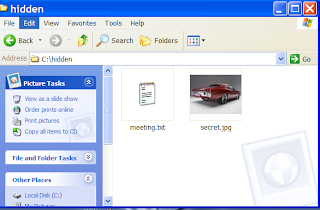
2. Add the files you want to hide into a new RAR archive eg. meeting.rar
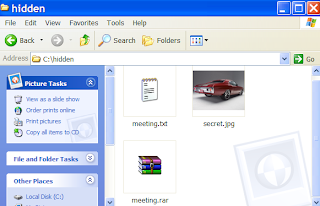


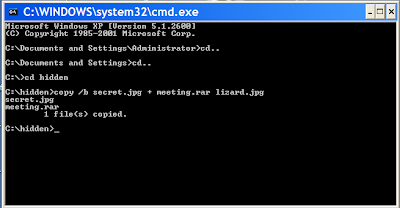
3. Open Command Prompt by typing cmd in RUN and type the following command (this is just example . comand depends on where you create the file)
>cd..
>cd..
>cd hidden
>copy /b secret.jpg + meeting.rar lizard.jpg where secret.jpg is the original picture, meeting.rar is the file to be hidden, and lizard.jpg is the file which contains both.
as shown below


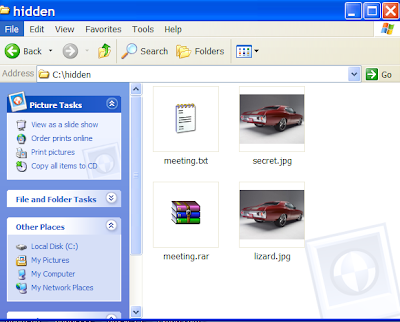
4 . so the new picture lizard.jpg which contained the hidden file is created

When you view the picture you will see only the picture (not the hidden file). To see the the hidden file inside the picture change the file extension from .jpg to .rar and extract it.
You can use this method to hide some files from average user.
Read More
Posted in how to | No comments

How To Make Your Windows Run Faster

Posted on 11:23 PM by Unknown
1. WindowsXP has a new feature called Prefetch. This keeps a shortcut to recently used
programs. However it can fill up with old and obsolete programs. To clean this
periodically go to:
Star / Run / Prefetch
Press Ctrl-A to highlight all the shorcuts
Delete them

2. Increasing System Performance
If you have 512 megs or more of memory, you can increase system performance by
having the core system kept in memory.
Start Regedit
Go to HKEY_LOCAL_MACHINE -> SYSTEM -> CurrentControlSet -> Control -> Session
Manager -> Memory Management -> DisablePagingExecutive
Set the value to be 1
Reboot the computer

3. Increase hard disk speed
Run SYSEDIT.EXE from the start & then Run command.
Expand the system.ini file window.
Scroll down almost to the end of the file till you find a line called [386enh].
Press Enter to make one blank line, and in that line type
Irq14=4096
Note: This line IS CASE SENSITIVE!!!
Click on the File menu, then choose Save.
Close SYSEDIT and reboot your computer.
Read More
Posted in how to | No comments

How To Clear Your Memory Without Restarting

Posted on 11:07 PM by Unknown
When u run your computer (windows) sometime you might feel that your computer was run slowly. It might because of the memory is almost reach it capacity. There's a solution how to clear them without restarting your computer.

1. Right click on an empty spot on your desktop and select New - Shortcut.
2. Type %windir%\system32\rundll32.exe advapi32.dll,ProcessIdleTasks in the box.
3. Click Next.
4. Give your shortcut a nice name like “Clear Memory”.
5. Click Finish and you’re done.

Now, if your computer start to run slow just double click this shortcut. And your computer will refresh again !!
Read More
Posted in how to, tips, What to do | No comments

Friday, March 14, 2008

Open Multiple Yahoo! Messengers

Posted on 4:02 PM by Unknown
You only need to do a few step, and you can open as many Yahoo! Messeenger as u want...


Read More
Posted in crack, how to, What to do | No comments

Thursday, February 28, 2008

Five Essential Browser Add-Ons

Posted on 2:42 AM by Unknown
1. IE Tab: If you use Firefox as your primary browser, you probably get stymied occasionally by Web sites that don't look right in its windows. Don't fire up Internet Explorer (which maintains a separate history and won't have your bookmarks); instead, use the IE Tab plug-in to instruct Firefox to temporarily use Internet Explorer's rendering engine. IE Tab resides in the bottom right corner of your browser. Click the Firefox icon to switch to IE mode and vice versa.

2. Duplicate Tab: Want a copy of the current window you're visiting, complete with the history of that browsing session? IE users can accomplish this without having to install and use a plug-in: Press Ctrl-N to open a new window with the entire history of the current window. For Firefox users, Duplicate Tab lets you obtain such a history with a single shortcut keystroke; or you can use the tool to merge multiple open windows into a series of tabs.

3. ErrorZilla: The standard "server not found" page is useless if you're looking for a Web site that's gone AWOL. ErrorZilla adds a series of buttons to the bottom of the standard "Firefox can't find the server" message, providing instant access to the Wayback machine, Google Cache, Whois lookup, and more.

4. Inline Search: IE users can obtain search-as-you-type functionality that works the same way it does in Firefox with this free, simple extension.

5. Extended Statusbar: This plug-in supplements the data that Firefox provides about a Web page and your Internet connection, providing such details as the total size (in KB) of the page, the transfer speed, and the load time.

http://www.pcworld.com/article/id,142706-page,4-c,software/article.html
Read More
Posted in browser, computer information, how to, Internet, Internet Explorer, What to do | No comments

Browser Boosters

Posted on 2:36 AM by Unknown
Web browsers--especially Firefox--are built with plug-ins in mind. Thousands of these code snippets are available, but here we present some of the most useful add-ons, plus a few tips that don't require any extra code.

Nuke Web ads: Though decried by many Webmasters for cutting into a lucrative revenue stream, Adblock Plus is practically a mandatory addition to Firefox, due to an increasingly onerous glut of Web advertising. (IE users can try Ad Muncher free for 30 days and then pay $30) Put simply, Adblock Plus blocks ads--not just pop-ups, but regular banners, towers, rich-media stuff, and Google's ubiquitous advertisements. Adblock Plus doesn't stop everything, but it nabs enough that you'll notice the difference immediately.

Many PCs, one set of bookmarks: If you use numerous computers, you have undoubtedly had to deal with separate browsers on each of those PCs, each with its own set of bookmarks that must be managed separately--unless you have a bookmark synchronizer, that is. Foxmarks is one of a number of tools that can sync Firefox bookmarks among multiple machines. Just install Foxmarks as an add-on to the Firefox installation on each system, and never worry about manual syncing again. As a bonus, you can access your bookmarks on the Foxmarks Web site, too.
FireFTP transforms Firefox into a full-blown, speedy, two-way FTP application. Click here to view full-size image.

Put an FTP app into Firefox: Even the most casual Web developer needs an FTP application, but many of these are cumbersome and unintuitive--and they require installing yet another full-blown program. FireFTP turns Firefox into an impromptu and speedy two-way FTP application. Once installed, FireFTP appears in the Tools menu. Click it and a new FTP tab opens up, offering a simple two-pane system that lets you easily copy files between your desktop and your remote site.
FlashGet tracks all your downloads, regardless of the specific application. Click here to view full-size image.

Get a handle on downloaded files: If you are a download junkie who always has something in the queue to leech off the Web, you need a download manager to help handle everything. FlashGet is a free and extremely popular download manager that can help you organize and queue up HTTP, FTP, BitTorrent, and other types of downloads, working in the background and letting you pause and resume downloads. It can even tell your computer to shut itself down when the downloading is done. Works on any browser.

Restore embedded passwords to IE URLs: Several years ago, Microsoft disallowed Internet Explorer to use an embedded password as part of a URL (of the format https://username:password@server.com) when a user goes to a protected Web site; instead the person must type in the password manually at the pop-up log-in screen. (This restriction was a response to phishers' employing phony password fields to deceive unsuspecting users.) Restoring IE's original ability takes a Registry tweak. Run Regedit and browse to the following Registry key: HKEY_LOCAL_MACHINE\Software\Microsoft\Internet Explorer\Main\FeatureControl\FEATURE_HTTP_
USERNAME_PASSWORD_DISABLE

Here, create two new DWORD values: iexplore.exe and explorer.exe. Leave the default DWORD value for each of these at '0'. Restart IE.

Grab a hard copy of any Web page: Did you ever print a hard copy of a Web page only to have it come out garbled, missing images, and otherwise nigh unreadable? One reason that may happen is because the newfangled Web 2.0 standards don't play well with 0.1-era printers. Solution: Grab a screen shot of a Web page, and select Print. But how do you do that, when a single page has enough content to fill up three display screens? Simple: Install Screengrab for Firefox, which lets you save a full page, the visible portion of a page, or just the tidbit you'd like to keep. IE Screenshot performs similar tricks for the Microsoft browser. Save images as digital files or print them out.

http://www.pcworld.com/article/id,142706-page,2-c,software/article.html
Read More
Posted in browser, computer information, how to, Internet, What to do | No comments

Monday, February 18, 2008

How To Install MacOS On Windows Vista

Posted on 4:09 PM by Unknown
If you still think that you need macintosh computer to try MacOS, that's already in the past. Now you can try MacOS on Windows Vista. How to do it ? Check this out !

First thing that you need to do is you need to have VM Player that can be download from VM Player Free and of course DVD installer MacOS X version 10.4.5 or 10.4.6 or 10.4.7 or 10.4.8.

1. Run VM Player, Start -> All Programs -> VM Ware -> VM Player.
2. Create new virtual machine, by click New Virtual Machine.
3. Then click next
4. Then choose Custom, and click next then next again.
5. Then choose Other and FreeBSD for the version. For Core 2 Duo and Core Duo user
with 945 pm (Calistoga) you need to choose Windows NT. This step is needed to
prevent the processor to failed in boot DVD MacOS. Then click next.
6. Give your new virtual machine with MacOS for easier identification.
7. Then answer one, if there is a question that asked you about how many virtual
processor that will be created. (Still answer one although there are 2 processor
on your computer)
8. Then you need to set how many memory that you will allocated for MacOs, you suggest
to set it to 256 mb ( 512 mb from 1.5 gb is very recommended). Then next.
9. Then choose [Use bridged networking] and next then next again.
10. Then choose create new virtual disk and next.
11. Then you need to set what kind of your virtual disk, IDe or SCSI. Then next.
12. After that you need to set the capacity of your new virtual disk.
13. After you click next, you need to decide where your virtual disk will placed.
Choose place that different with place where your main operation system place,
14. Then click finish, and close VM window.
15. Now you need to open windows explorer, and find VM ware setting. The default
location is on Documents\Virtual Machines\MacOS X. Then open configuration file
( with .vmx) using notepad.
16. Add paevm=”true” on the last row. If with this configuration failde to boot
virtual machine, you can change scsi0.present = “TRUE” with scsi0.present =
“FALSE”.
17. Save the configuration .vmx file.
18. Now insert DVD MaacOS and Power On This Virtual Machine.
19. When booting MacOS take process, press F8 and type -v. This will bring you to
verbose mode, that will make easier to detect if there is something wrong with
the installation.
20. After GUI (graphical user interface) screen appear, follow step by step until you
need to choose hard disk. Click Utilities, then Disk Utility.
21. Choose VM drive on the left panel, and partition on the right panel.
22. Change partition volume to 1 and give it a name. Make sure that format will be
created is Mac OS Extended (Journaled) and make sure that the space is sufficient.
23. Click partition and click partition ones again. After your disk formating is
finish, you can close Disk Utility window and your partition will show up on
set up page. Continue to next instalation step.
24. If you use Intel processor with SS2, make sure you choose customize and put a
check mark on patch.
25. After you only need to click continue and wait until instalation process finish.
And you can enjoy Apple operation system on Vista.

Happy trying !!
Read More
Posted in apple, computer information, Hot News, how to, Mac, notebook, processor, tips, What to do | No comments
Newer Posts Older Posts Home
Subscribe to: Posts (Atom)

Popular Posts

  • The Ubuntu guide for displaced Windows users
    With Windows 8 pushing a “touch-first” desktop interface—Microsoft’s  words , not ours—and with Valve’s  Steam on Linux  beginning to bring ...
  • Backing up your entire drive: Cloning vs. imaging
    Both cloning and imaging create an exact record of your drive or partition. I'm not just talking about the files, but the master boot re...
  • Will Samsung top Apple by withholding revolutionary tech?
    Samsung is drawing closer and closer to the technology that will transform the future of smartphones and  tablets . The company will show of...
  • Obama opposes Silicon Valley firms on immigration reform
    President Obama opposes an immigration reform bill backed by companies including Apple, Microsoft, and Adobe that would let U.S.-educated co...
  • Word vulnerability tops Microsoft's targets for Patch Tuesday
    A flaw in  Microsoft  Word ranks among the top security problems addressed by December's Patch Tuesday fixes, closing a hole that allows...
  • How to make Ubuntu Linux look like Windows 7
    Windows 8's tile-based interface puts a bold new spin on the familiar Windows interface—so bold that many long-time Windows users are th...
  • How to optimize Windows 8 on old hardware (2)
    Disable unnecessary items To further optimize Windows 8 on older hardware, we recommend disabling as many unnecessary startup items and serv...
  • How To Install MacOS On Windows Vista
    If you still think that you need macintosh computer to try MacOS, that's already in the past. Now you can try MacOS on Windows Vista. Ho...
  • Feds: MegaUpload was not entrapped
    Entrapment is one of MegaUpload's claims in its legal battle against the U.S. government. The feds are now saying this claim is "ba...
  • What it really takes to make a flexible phone (Smartphones Unlocked) Read more: http://www.cnet.com/8301-17918_1-57567014-85/what-it-really-takes-to-make-a-flexible-phone-smartphones-unlocked/#ixzz2JqPL5i4n
    A bendable screen is nice in the lab, but it will take more than flexi-glass to get your phone to touch its toes. Had Dr. Dipak Chowdhury kn...

Categories

  • apple
  • browser
  • buy
  • christmas
  • computer information
  • crack
  • cyber monday
  • download
  • files
  • firewall
  • flash disk
  • font
  • graphene
  • hard disk
  • hidden
  • Hot News
  • how to
  • intel
  • Internet
  • Internet Explorer
  • iOS
  • iPad
  • Mac
  • Malware
  • nokia
  • notebook
  • play station 4
  • processor
  • removal
  • safe
  • samsung
  • samsung. microsoft
  • security
  • sony
  • ssd
  • The Meaning Is
  • tips
  • twitter
  • ubuntu
  • video card
  • virus
  • vulnerability
  • What to do
  • windows 8
  • windows7

Blog Archive

  • ▼  2013 (90)
    • ▼  October (2)
      • How to avoid common PC building mistakes
      • Defective RAM can cause all sorts of problems. If ...
    • ►  September (6)
    • ►  August (3)
    • ►  July (4)
    • ►  June (5)
    • ►  May (9)
    • ►  April (14)
    • ►  March (11)
    • ►  February (17)
    • ►  January (19)
  • ►  2012 (27)
    • ►  December (22)
    • ►  November (5)
  • ►  2010 (4)
    • ►  June (1)
    • ►  January (3)
  • ►  2009 (32)
    • ►  December (2)
    • ►  November (11)
    • ►  October (11)
    • ►  September (2)
    • ►  March (2)
    • ►  February (4)
  • ►  2008 (39)
    • ►  October (2)
    • ►  September (2)
    • ►  August (1)
    • ►  June (1)
    • ►  May (3)
    • ►  March (1)
    • ►  February (7)
    • ►  January (22)
  • ►  2007 (46)
    • ►  December (8)
    • ►  November (9)
    • ►  September (4)
    • ►  August (2)
    • ►  July (9)
    • ►  June (14)
Powered by Blogger.

About Me

Unknown
View my complete profile